
Calculate Days Elapsed Post Function [ver. 0.9.0]
- Hua Soon SIM [Akeles]
- TZR
This page is for v0.9.0 when there is only 3 modes.
For v1.0.0 onwards, please refer to Calculate Days Elapsed Post Function
The Traffic Light custom field can be used in 2 ways:
- For continuous tracking from the start date to keep on incrementing the days elapsed without a known end date
- For grading the performance at the end by calculating the days elapsed with a known start and end date
Both can be done with the Calculate Days Elapsed for Traffic Light Post Function which initialises the information required for tracking the day elapsed.
Adding the Post Function
For the basics on setting up a workflow, please refer to JIRA's documentation on configuring workflows
To modify an existing workflow to include the Calculate Days Elapsed Post Function,
Select the workflow transition to perform the calculate days elapsed post function
It is possible to start tracking from the issue creation by adding the post function to the Create transition
- Click on Add post function and add a Calculate Days Elapsed for Traffic Light post function.
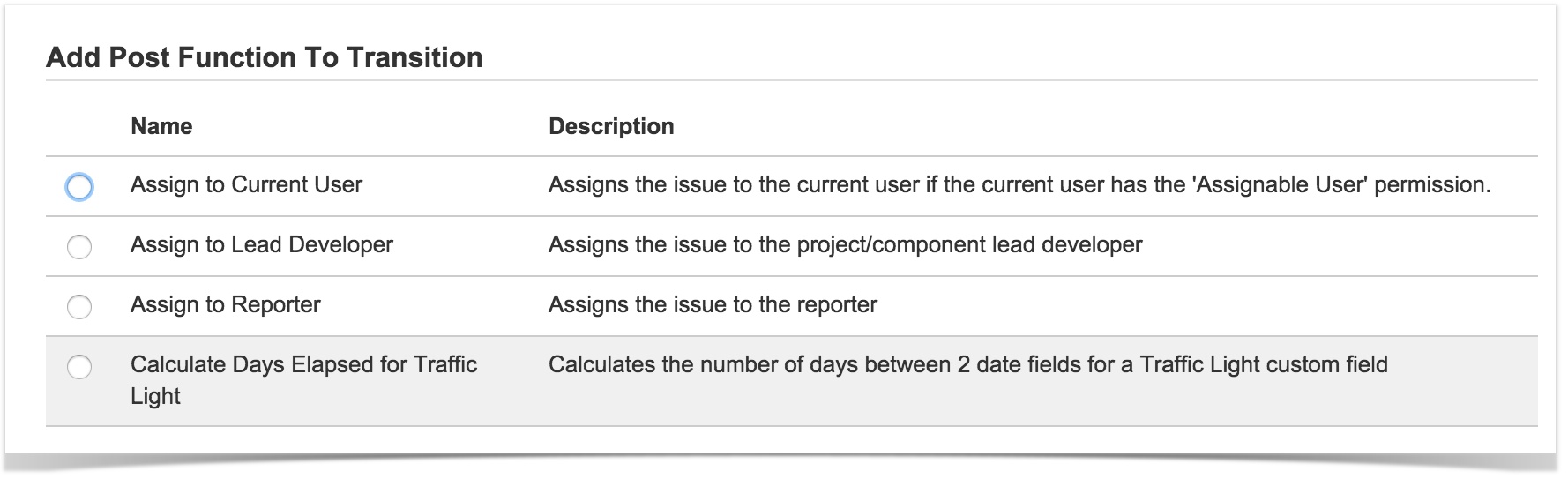
Fill in the settings for the post function
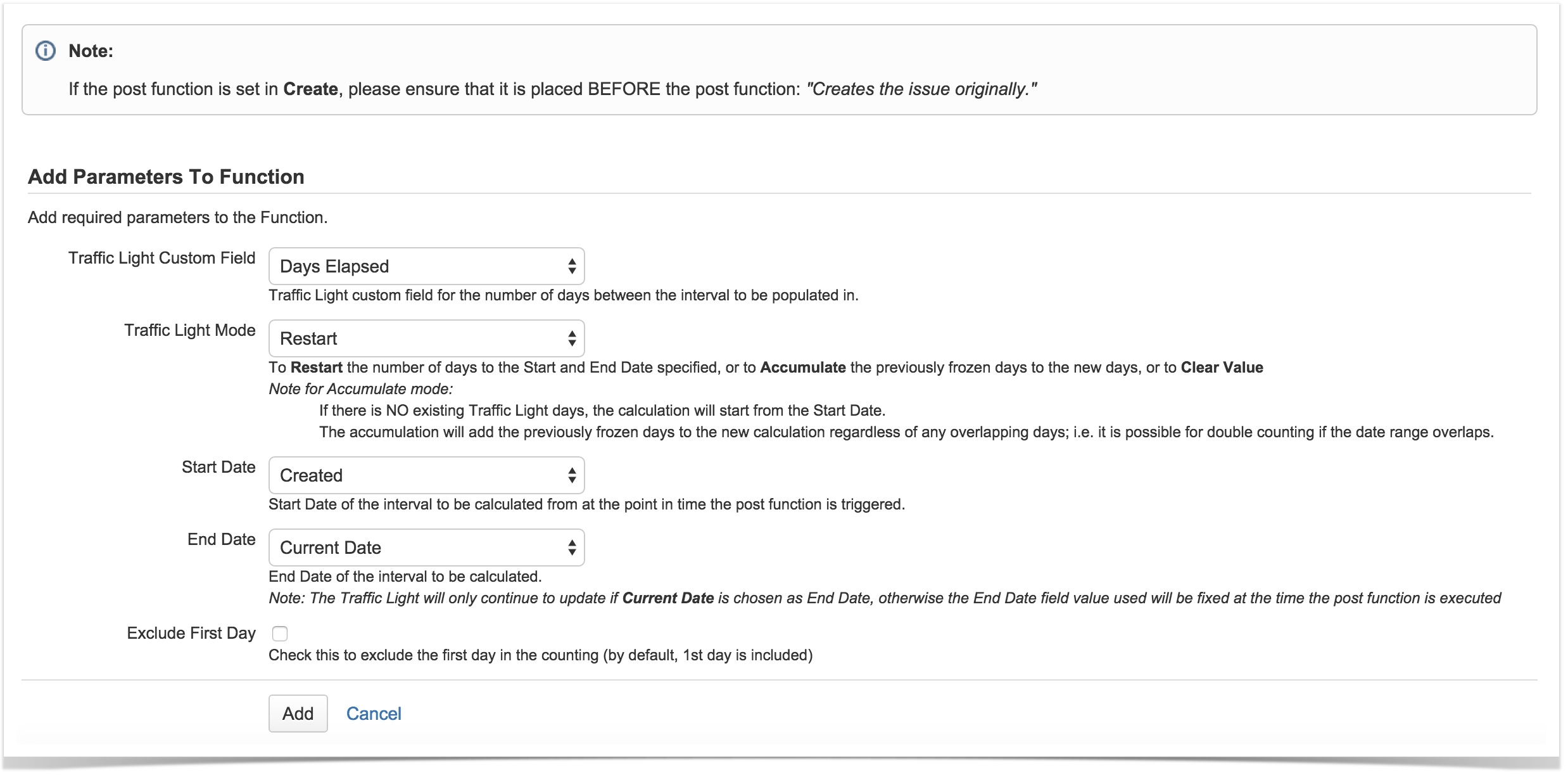
Traffic Light Custom Field The Traffic Light custom field to update Traffic Light Mode 3 modes: - Restart: this will recalculate the days elapsed from the Start till End date specified below.
- Accumulate: this will retain any existing days elapsed value and add it to the days elapsed from the Start till End date specified below.
- e.g. An issue took 4 working days to resolve and the Traffic Light is stopped at 4 days, but after the issue has been closed for 2 days, it is reopened with Traffic Light set to Accumulate mode → after issue is reopened, the number of working days will start counting from 4 days.
- Clear Value: this will clear and reset the target Traffic Light custom field value
Start Date The start date to calculate the days elapsed from. If the date custom field value is null, the Traffic Light value will be cleared. End Date The end date to calculate the days elapsed to. If the date custom field value is null, the Traffic Light value will be cleared. - If it is Current Date, then the Traffic Light days elapsed will continue to update everyday.
- If it is Today, it will use the date and time when the post function was executed
- For other date/datepicker custom fields, it will used the value provided
Exclude First Day
Whether to exclude the 1st day in the calculation.
When ticked, it means to exclude the 1st day from the Start Date from counting as a working day. The default setting is to include the 1st dayThe date fields are ordered in 4 groups of alphabetical sequence
- Current Date - to continue counting until the post function is executed again with a known end date
- Today - The date and time the post function
- System Date Fields - Created Date, Due Date, Resolution Date, Updated
- Custom Fields - Date Picker or Date Timer Picker custom fields added by administrators
Publish the workflow
Some Technical Details to Note
- When the post function is added in the Create transition, the Traffic Light post function needs to be placed before the "Creates the issue originally." post function for it to work.
- If either the Start or End date fields is updated by the post function, please ensure that the Calculate Days Elapsed for Traffic Light post function is after the update date field post function.
- Please ensure the workflow design such that the End Date should not be earlier than the Start Date. Otherwise it will be considered as 0 day elapsed.
- If a Traffic Light is Frozen (i.e. the Start and End Date time are known ), the Traffic Light will no longer update until another Post Function triggers any change to it.
- If a Traffic Light is Alive (End Date = Current Date) and the edited fields are used in the Traffic Light's JQL condition mapping, then the traffic light color may be changed due to another matching condition.
- If an issue cannot match any mapping conditions due to an edit, the Traffic Light becomes White color since the color cannot be determined. The color will be corrected after the mapping conditions or the issue is corrected.